How to obtain the credentialls and set up streaming in the Skydio account.
1. Log into Skydio Cloud:
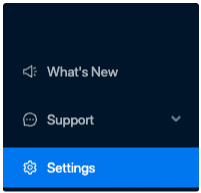
Go to Skydio Cloud and login with your credentialsClick on settings in the bottom left:
Select API Tokens:
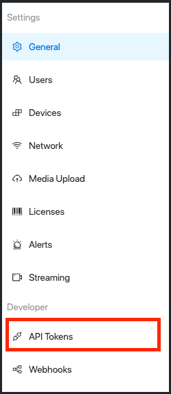
API tokens - click on Generate New Token:

A new window will prompt, type a Token Name in the form and click the Add button.
example: Fusus
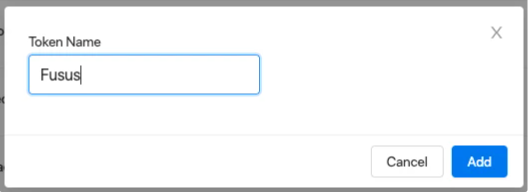
The window will close and return to the API Tokens list.
Copy the Token ID and the Secret Token securely by using the button.

Note: One the page is refreshed the Secret Token will disappear and only the Token ID can be copied. In order to get a Secret Token again, you will need to remove the Token and restart from the Step 1 .
Provide the Token ID and the Secret Token to Fusus Network Support by email to helpdesk@fusus.com.
*When available
Enter the Token ID and the Secret Token in the App Store in fususONE.
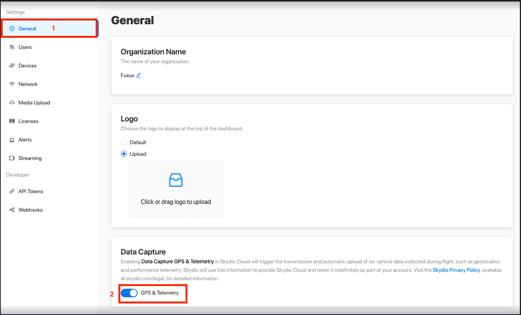
2. Enable Data Capture.
Once the API token is created streaming to the API needs to be enabled.
Select General from the Settings menu.
Activate GPS & Telemetry
3. Enable Streaming.
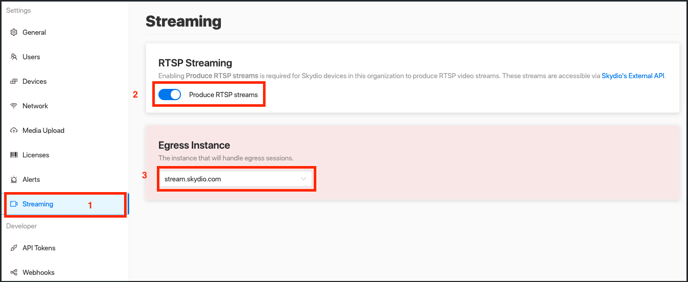
Select Streaming from the settings menu:
Enable Produce RTSP streams
Use streams.skydio.com for the Egress instance.
4. Add Integration in Django Admin
Once the previous credentials are obtained from the agency.
Go to integrations select Add Integration
Enter the Client ID: Skydio Token ID and Secret Key: Skydio Secret Key