
Flock Integration Initial Process
The customer must first request the Flock Safety integration from the FususONE App Store to start the integration process.
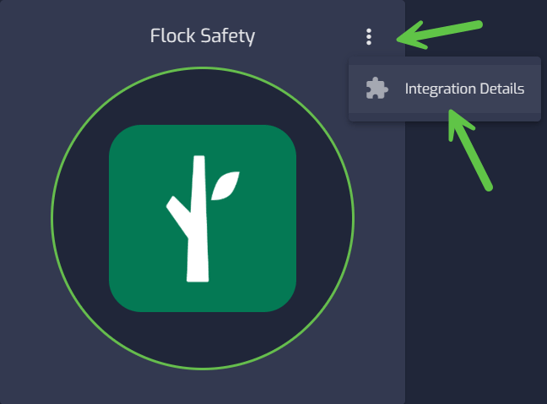
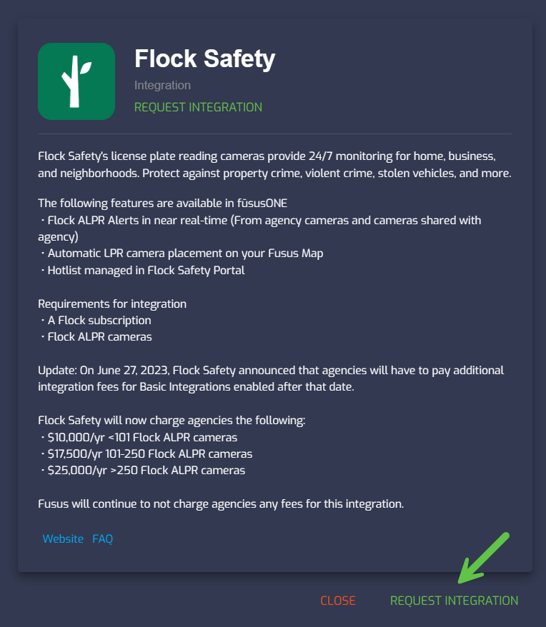
The Fusus support representative will advise the customer to reach out to Flock to enable the "Add Fusus" button in the customer's Flock account integrations panel.
Once Flock enables the "Add Fusus" button, the customer is advised to notify Fusus Support to provide them with credentials.
The credentials are generated in Support UI by the Fusus Support Network Engineer to provide to the Flock customer to enter into their Flock account.
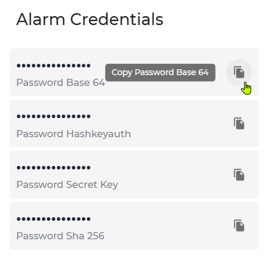
The username and password can be retrieved in the Fusus Support UI from the customer's account, as shown.- Click on the "Alarm Integration Credential" shield icon, then click on the "Password Base 64" icon to generate and copy the password.

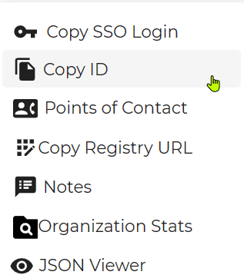
- Click on the kabob icon and select "Copy ID" to obtain the username to provide to the customer.

The username and password should look similar to this format.
Your username is: d1234567-ab12-55ea-c0f5-22ae5376frd0
Password: w/NeDB/XVWhrURvoPT/3A==
- Provide the username and the password to the customer to enter into their Flock account. Notify the customer that it may take a few minutes to activate and start receiving alerts fully.